In your WMS system, products are created with key details such as product code, name, barcode, and other attributes for proper inventory management. This guide will walk you through creating and managing products in the WMS.
Steps to Create a Product
- Go to the Warehouse Masters Module.
- Click on the Products submodule to open the product creation page.
Entering Product Details
Fill in the following details to create a product:
- Product Code: Enter the unique product code.
- Product Name: Provide the product name.
- Barcode: Enter the product barcode for tracking.
- Package Type: Select the type of packaging:
- Bag
- Box
- Wooden Drums
- Picking Rules: Choose picking rules, such as:
- First Expire First Out (FIFO) — The material that is going to expire first will be prioritized by the system for picking.
- First Manufacturing First Out (FMFO) — The material that was manufactured first will be picked first. For example, if there are two product with manufacturing dates of 01-05-2025 and 02-05-2025, the system will check which one was manufactured earlier and will suggest the material with the 01-05-2025 date for picking.
- Batch Number – When we go for picking, the system checks which batch number was entered into the system first, and that batch will be given priority for picking.
- Batch Number: Enter the batch number.
- ASN Number: Advanced Shipping Notice (ASN) number.
Selecting a Supplier
You can choose a supplier from the dropdown list, or create a new supplier by clicking on the Plus button.
Selecting Product Channels
Assign multiple channels for your product from the Channel column. This is useful if the product is sold through different channels.
Mandatory Fields
Ensure that the following mandatory fields are filled out:
- Product Name
- Package Type
- Warehouse Stock Level
- Supplier
- Product Code
Additional Product Information
Enter additional product details such as:
- SKU: Stock Keeping Unit details.
- Type: Serial or non-serial product.
- Part Number, Name, EAN Number: Further product identification details.
- Dimensions: Length, height, weight of the product.
Customer Product Code: If a customer refers to the product by a different name, you can save that information by entering the Customer Code and the corresponding Customer Product Code.

- Skip auto-suggested put-away location — When you put away the material, the system will suggest a location.
- Skip auto-suggested pickup location — When you picking the material, the system will suggest a location to pick it from.
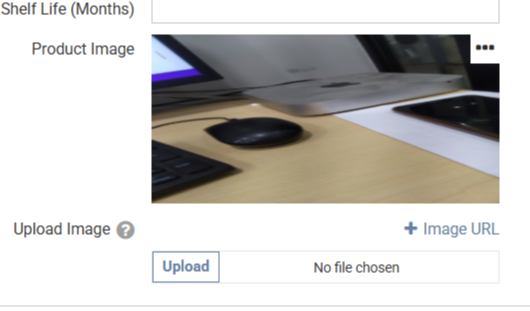
- Upload Product Image: Click on the upload button and select the image, or click on 'Image URL' and enter the picture URL."
Saving the Product
Once you have filled in all the required fields, click on the Save button. You will then be redirected to the product page.
Managing the Product
On the product page, you will see a list of products along with a menu represented by three dots. This menu offers the following options:
- Edit: Modify product details or update information.
- Inventory History: Track when the product was dispatched, when the GRN (Goods Receipt Note) was processed, and other inventory events.
- View Product: View all the product details, SKU number, and packaging barcode.